 Save as PDF
04.A. eDoctrina® Tips & Tricks:
Answer Sheet Scanning
- Please review your answer sheet before you scan them. Be on the look out for extra
marks, faded barcodes, etc.
- Ensure the answer sheet prints clearly. DO NOT USE answer sheets if the copier’s
toner was low and the sheet looks faded; they will not scan properly.
- Make sure the four squares in the corners of each sheet printed fully.
- Students may cross out mistakes. These questions will need to be checked by a teacher. Directions are found at the top of each answer sheet:

- Eliminate stray marks (doodles, student work, etc.) in any area of the answer sheet.
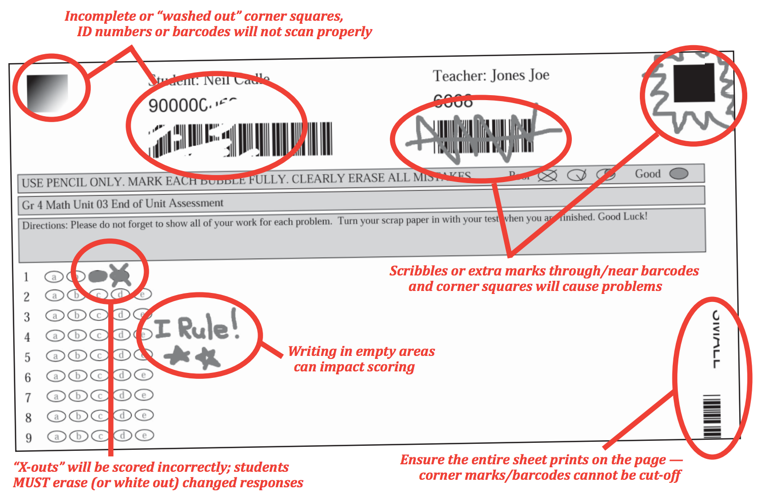
Bubbling / Scanning problems to watch out for!
Below are examples of 3 different scanning settings that could cause 3 different results.
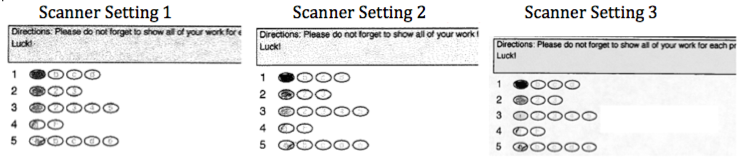
Another source of error is BLANK ANSWERS. When students do not fill in a bubble for an answer, sometimes the system picks up one of the blank bubbles as the darkest bubble and reports this as the answer.
How to prevent these problems:
Have students answer EVERY question by filling in the bubbles DARK. Regardless of scanner or scanner settings, this will always provide the best results.
If you want to know which questions a student does not have any idea how to answer, add an additional answer choice and instruct students to fill in this answer if they are not sure, INSTEAD OF LEAVING THE QUESTION BLANK.
If you notice frequent problems, have your copier technician contact eDoctrina and we will work with them to optimize settings.
Checking Scans with Answer Entry
Open the "Answer Entry" tool to review scanned assessment results. For those users who receive an email when scanning is complete, the link in the email leads here.
Be on the lookout for incomplete data caused by issues with the answer sheets. These may include unanswered questions, stray marks, printing that is too light or too dark, student "x-outs" (erasures are required), etc.
Familiarize yourself with the different icons located on the "Answer Entry" screen.


For more information on using the "Answer Verification" screen, Click Here