 Save as PDF
03.F. How to Print an Assessment
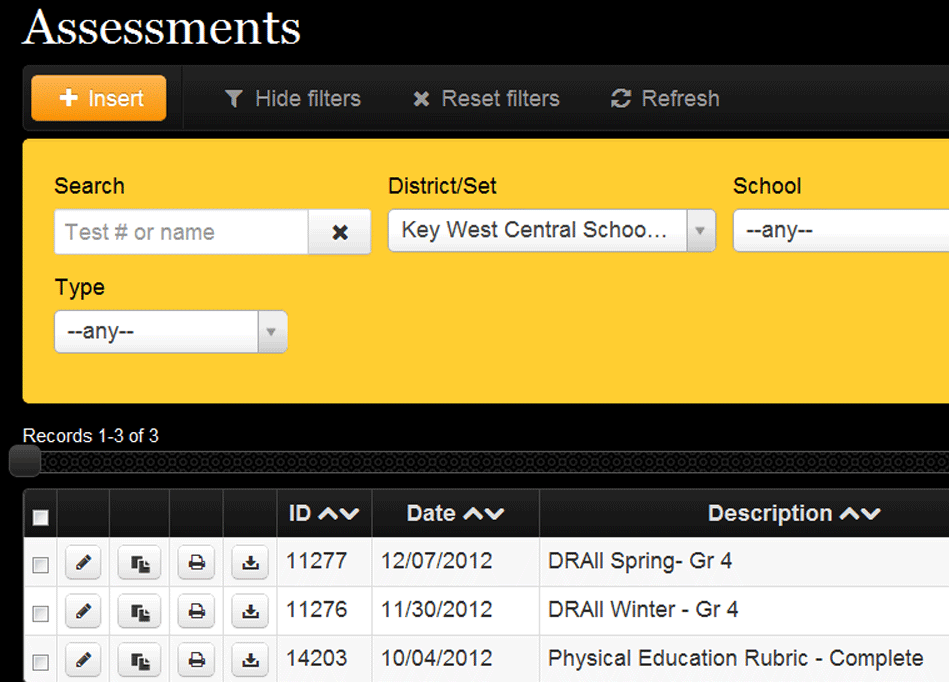
To print an assessment to give to students or an assessment map for your use:
1.From the "Assessments" screen (see above), click the printer icon.
2.A pop-up menu (see below) appears with a number of options. One box must be checked in each of the two categories, “Report format” and “Reports to include," to proceed. The first set has four options relating to the format in which the assessment will print. They include: HTML (viewable on the screen), DOC (viewable and editable in Word), PDF - One Column and PDF - Two Columns. The last two are viewable/printable in an Adobe PDF file. Select one.
The second set includes three options: Assessment questions (click this to print the assessment for student use), Assessment map (a printable answer key-like report that includes questions, answers and standards), and Assessment grades (a report on the grade formats and colors selected within the Grade Conversion table). Select at least one.
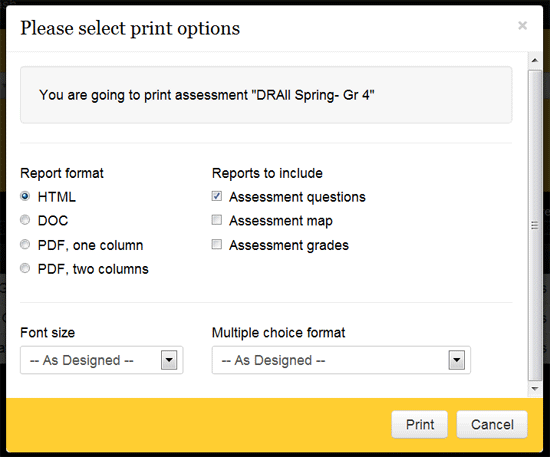
3.The last two options, "Font size" and "Multiple choice format" allow users to override the assessment's formatting and print out using a single font size and multiple choice format (numerical or alphabetical).
4.Once the appopriate selections have been made, click “Print."